HOW TO TAKE SCREENSHOT ON SAMSUNG GALAXY S5, S6 & S7

How to take a screenshot on Samsung Galaxy S5, S6 or S7


When you’re doing it on your PC, it’s really simple: you press Print Screen on your keyboard, open Paint, paste the image, then save it. And voila, your screenshot is ready. But what if you want to do it on your phone?
Whether you want to take a screenshot on Samsung Galaxy S5 or even newer models, like Galaxy S6 or S7, you need to follow a few simple steps. Then, you will see the image in your phone’s gallery, from where you can do everything you want with it, like share it or edit it.
Therefore, without much further ado, let’s see how you can take screenshots on some of Samsung’s most recent flagships!

How to take a screenshot on Samsung Galaxy S5, S6 or S7 using the buttons

The most used method of doing this is by pressing a few of the phone’s hardware buttons at the same time.
  • Go to the app, image, video or anything you want to capture a screenshot from
  • Press the Power Button and the Home Button at the same time, for 1-2 seconds
  • You will see a white flash around the phone’s screen and hear a camera shutter sound. This means that the screenshot was successfully taken
  • Open the Gallery and you should see a Screenshots folder. Here you can find your latest screenshot

How to take a screenshot on Samsung Galaxy S5, S6 or S7 using a swipe

Additionally, you can use another method to do this as well. Specifically, we’re talking about swiping your palm on the display in order to take a capture. However, this method needs to be enabled, first, in order to use it properly.
  • Go to Settings > Motions and Gestures
  • Check the Palm swipe to capture option
  • Go to the app, image, video or anything you want to capture a screenshot from
  • Swipe the edge of your hand from the right side to another of the screen. Make sure you cover the entire width of the screen
  • You will see a white frame flashing on this screen and hear a camera shutter sound. This means that the screenshot was successfully taken
  • Check out the screenshot you’ve just taken, in the Screenshots folder
As for the Samsung Galaxy S6 or S7, you can use exactly the same methods in order to take a screenshot, whether we’re talking about the regular versions or Edge ones. Things do change when it comes to the Galaxy S8 or S9 since these don’t have a Home Button anymore, but we’ll get to this in another guide


How to Bypass Google FRP on ZTE

It looks like several owners are also dealing with this problem, so we’ve put together the instructions for a ZTE Google account bypass.
Bypass Google Account ZTE

FRP bypass for ZTE instructions

  • Reset the phone and power it back on
  • Choose your preferred language, then tap onStart
  • Connect the phone to a Wifi Network (preferably your Home network)
  • Skip several steps of the setup until you reach the Verify Account screen
  • Tap on the email field, in order to activate the keyboard
  • Most ZTE phones come with the Swift Key keyboard, so you need to tap on the keyboard’s menu key.
  • Select Settings from the menu
  • From the Settings menu within SwiftKey select Languages
  • Minimize the menu on the screen, then go to the Google search bar
  • When prompted to sign in with a Google Account, choose “No, Thanks
  • In the Google search bar, type “Settings” and select it. If the SwiftKey menu pops up again, tap on Got it, then Not Now.
  • From the Settings menu select Backup and Reset
  • From this submenu, choose Factory Data Reset. Go through the entire process and reset your handset again. However, this time you won’t see the FRP lock.

BYPASS GOOGLE FRP ON ALCATEL DEVICE

Another brand prone to dealing with FRP lock issues is Alcatel. Fortunately, we found some instructions on how to bypass Google verification on Alcatel One Touch models, Idol, Pixi, Fierce, and other models coming from this brand.
FRP Bypass Alcatel

FRP bypass for Alcatel instructions

  • Reset the phone and power it back on
  • Choose your preferred language, then tap on Start
  • Connect the phone to a Wifi Network (preferably your Home network)
  • Skip several steps of the setup until you reach the Verify Account screen
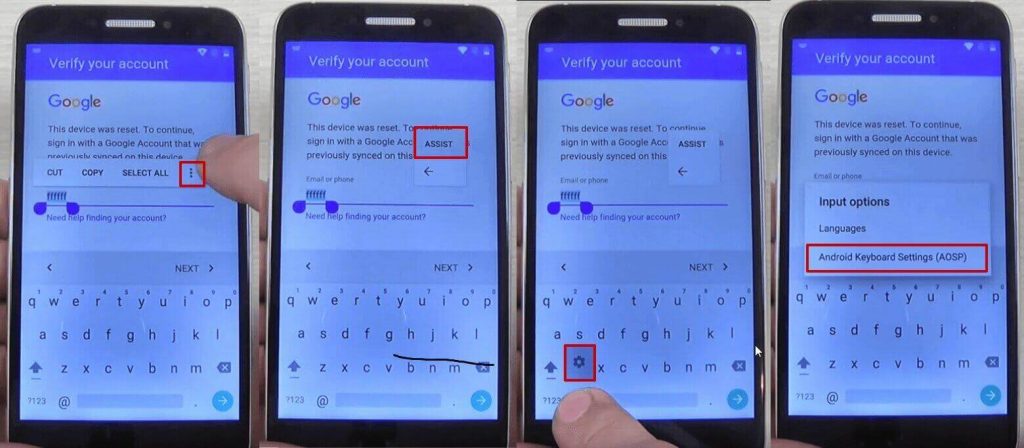
  • Tap on the email field, in order to activate the keyboard, and type anything you want
  • Long press the text you entered, until a menu with Cut, Copy, Select all, and three dots appear. Press the three dots.
  • The Assist option will appear. Tap on it. In most cases, this won’t work, so press the @ symbol at the bottom of the keyboard, until the Gear iconappears. Tap on that one.
  • A new menu will appear. From here, tap on Android Keyboard Settings.
Bypass Google account Alcatel 1
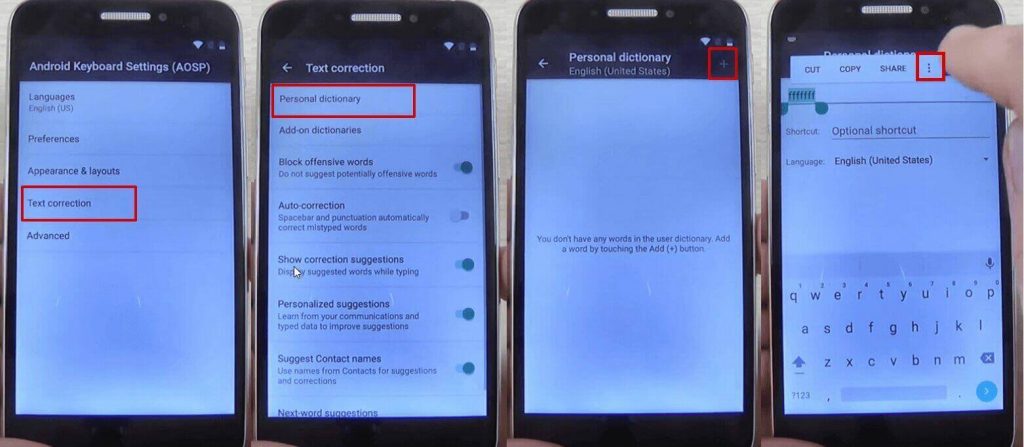
  • From this new menu, tap on Text Correction, then go to Personal Dictionary and tap on English (United States)
  • Tap on the + icon in the upper right corner
  • On the first field, type anything you want and long press on the text until a menu appears, with Cut, Copy, Share, and three dots. Tap on the three dots
Bypass Google Account Alcatel Process 1
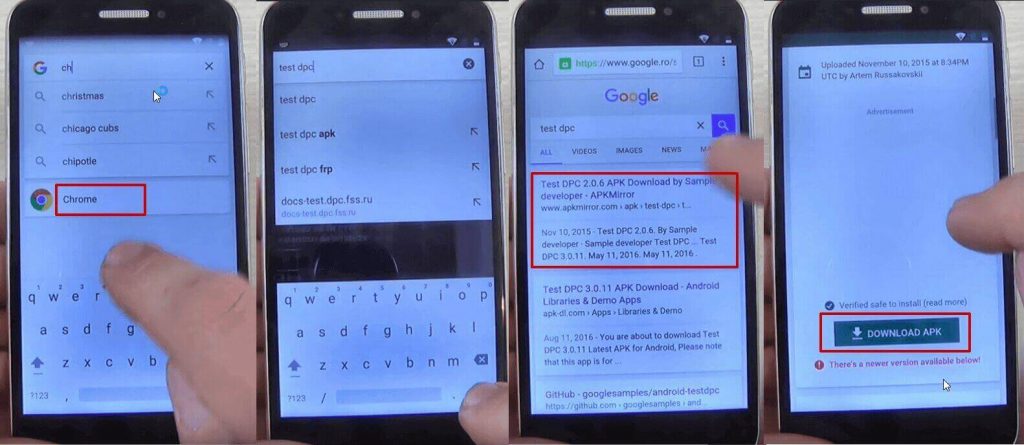
  • You will be taken to Google Search. Here, type “chrome” in the search bar and tap on it from the drop-down menu
  • Tap on Accept and Continue, then No, thanks
  • In Chrome’s search bar, type “test dpc” and tap on it
  • Tap on the first result
  • Scroll to the bottom of the page and tap Download APK. This will begin the FRP bypass tool download.
FRP Bypass Alcatel Process 1
  • You will get a message saying that the download could harm your device since it’s from an external source. Tap Ok
  • Wait for a few moments, until the FRP bypass tool is downloaded on your phone.
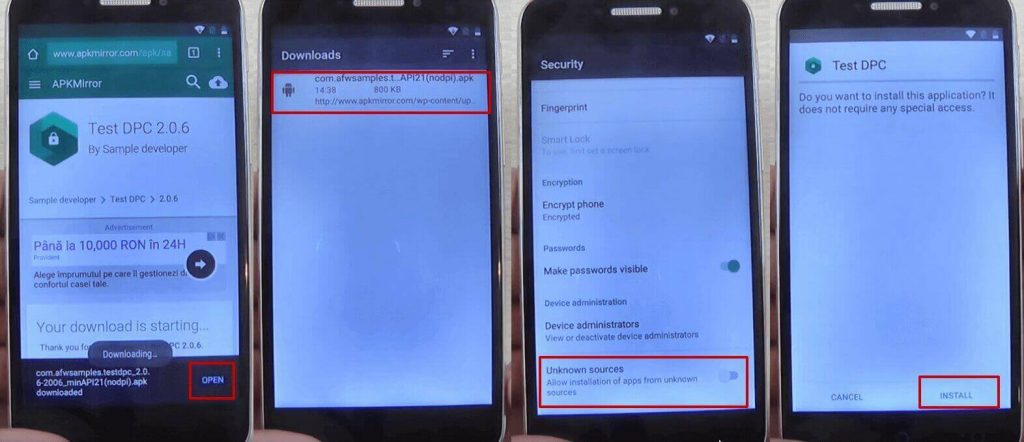
  • Tap on the apk package you just downloaded, in order to start installing it. Your phone will show a pop-up, saying that the installation is blocked. Tap on the Settings button and allow installation from unknown sources, then tap Ok
  • Hit the back key until you see the apk package again and tap on it
  • You will be asked if you want to install Test DPC, the FRP bypass apk, so tap the install button
FRP Bypass Alcatel
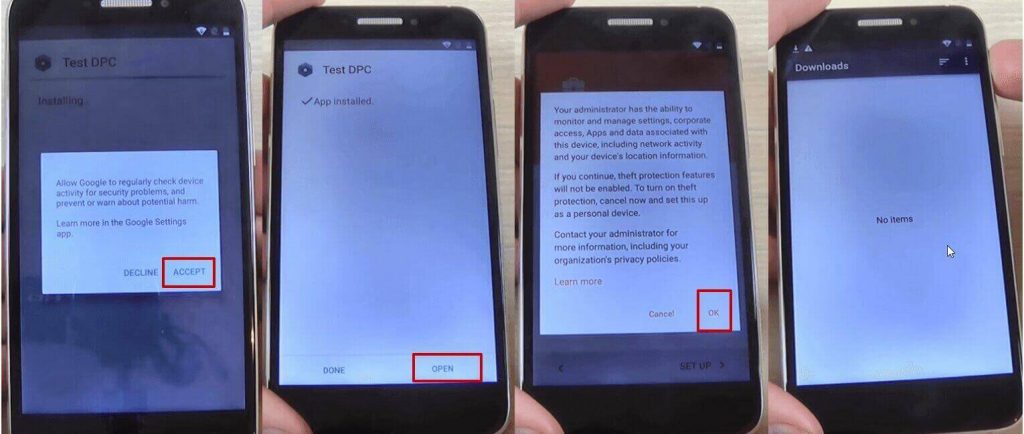
  • During the installation process of the FRP lock app you will see a pop-up message. Tap on Accept
  • Wait until the installation process is ready and tap on Open
  • You will see the Setup Management screen. Tap on Set up device owner, then Set up
  • In the next screen, tap on Set up. A new pop-up message will be shown. Tap on Ok
  • Wait until the device owner is being set
  • The FRP bypass apk for Android package will show once again, but will shortly disappear and the Downloads folder will be shown, with no items in it.
Bypass Google Account Alcatel Process 5
  • Restart your phone
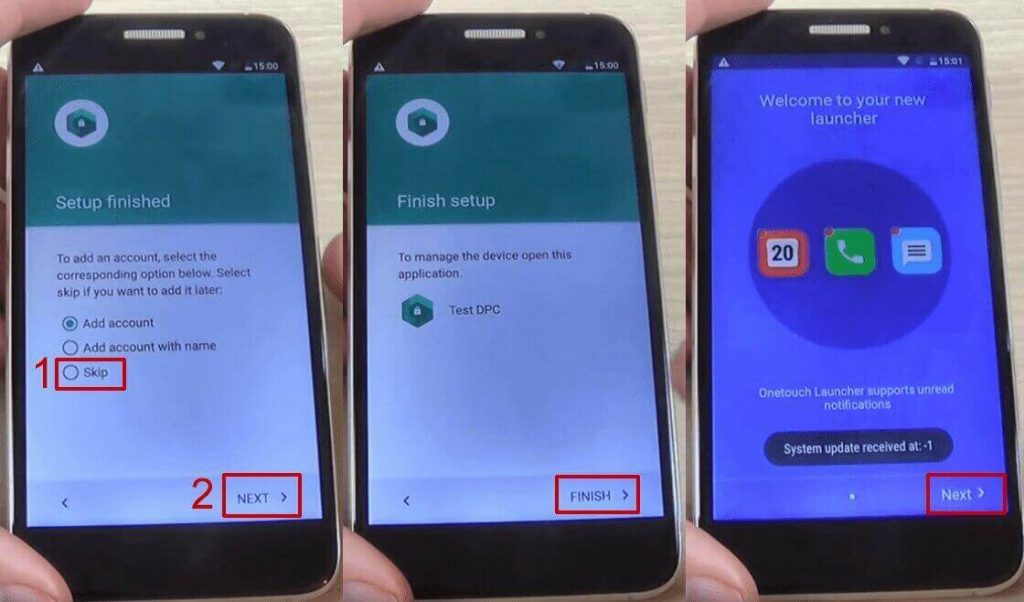
  • Unlock the phone and you will be taken automatically to the Test DPC app, which will show the Set up finished screen
  • Check Skip, then tap on Next
  • On the next screen, tap Finish. You will be taken to the initial setup process. Click next until you are taken to the phone’s home screen
Bypass Google Account Alcatel Process 6
  • Go to Settings > Backup and reset > Factory data reset and tap on Reset Phone
  • Tap on Reset Everything
  • Wait until the phone restarts and go through the setup process
  • DO NOT connect to a Wi-Fi network, then hit Next until the setup is finished
  • Configure the phone’s launcher
  • That’s it, your phone won’t ask for the Google account anymore.
If this method doesn’t work, due to your phone coming with another keyboard, you can try the steps below:
  • Reset the phone and power it back on
  • Choose your preferred language, then tap on Start
  • Connect the phone to a Wifi Network (preferably your Home network)
  • Skip several steps of the setup until you reach the Verify Account screen
  • Tap on the email field, in order to activate the keyboard, and type anything you want
  • Tap on the hand key, in the bottom left corner. This will take you to the Swype keyboard’s menu
  • From this menu, type on Gestures
  • Scroll down until you find the Search option, with the “Highlight some text and Swipe from the *swipe key* to the S to do a quick web search” text
This previous step is very important since it actually shows you how you can make a search, even though the phone has a FRP Android lock.
  • Tap the back key twice, until you get to the Verify your account screen again
  • Type on the Enter your email field again, to make the keyboard pop up, and write a random text, like “bypass test”
  • Swipe from the bottom left corner button until the letter “S” on the keyboard. This should open the Google Search app
  • In Search, type Settings and select it
  • Go to Backup & Reset > Factory data reset and tap on it
  • Tap the Reset Phone button, at the bottom. Confirm with the Erase Everything button.After this, your phone will restart
  • You will be taken to the initial setup menu. Select English as your language, then tap the Nextbutton
  • Tap Skip/Next until you get to the phone’s home screen. While going through these steps, you will be asked to connect to a Wi-Fi network. DO NOT connect.
And that’s it! Your Alcatel phone won’t ask for the Google account verification anymore but if you still have difficulties,  as it can help you for sure..

HOW TO TAKE SCREENSHOT ON SAMSUNG GALAXY S5, S6 & S7

How to take a screenshot on Samsung Galaxy S5, S6 or S7 When you’re doing it on your PC, it’s really simple: you press Print Screen o...